Define the placement first
A product detail page needs legible packaging and a clear silhouette. A campaign concept may need empty space for a headline. Decide the use before writing the prompt. Use a reference photo for a specific product and a text prompt for an exploratory, fictional object.
Make the setting support the material
Glass benefits from a simple background and deliberate reflections. Matte packaging needs enough separation from the surface. A metallic object can disappear against a busy scene. Describe the surface, background color and position of the light, then inspect whether the generated reflections make sense.
Try a focused campaign brief
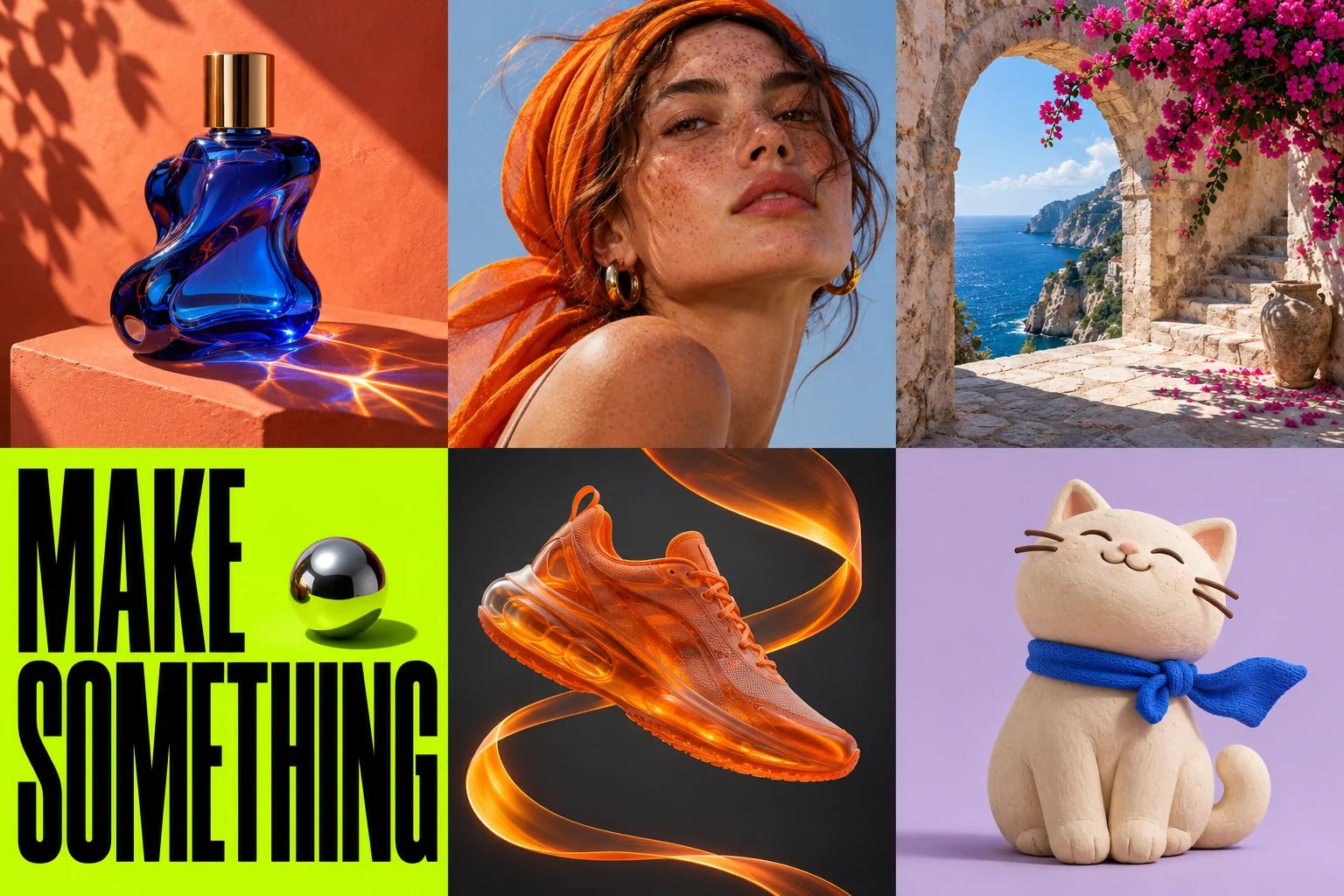
Use: “Keep the reference product centered on a coral stone plinth. Add a soft studio backdrop and directional sunlight from the upper left. Preserve the cap, bottle proportions and label wording. Leave the upper third clear for a headline.” Treat this as a starting brief, then check every preserved detail.
Keep factual claims outside the generation
Do not ask a generated image to invent certifications, ingredients, discounts or performance claims. Add approved copy later in a design tool. For a real product, compare packaging against the source photo and obtain a human review before publishing a listing.
Compare useful variations
Keep the product and camera angle constant while changing one background or lighting direction. Evaluate the result by the intended placement: does the product read clearly, is there space for copy, and are the important details correct? Save the prompt with the selected result so the next brief has a consistent starting point.