Products
Images26 Studio
Use the GPT Image 2.6 AI image generator to create an image from a prompt or edit a photo you upload.
Aspect ratio
01 / PROMPT LIBRARY
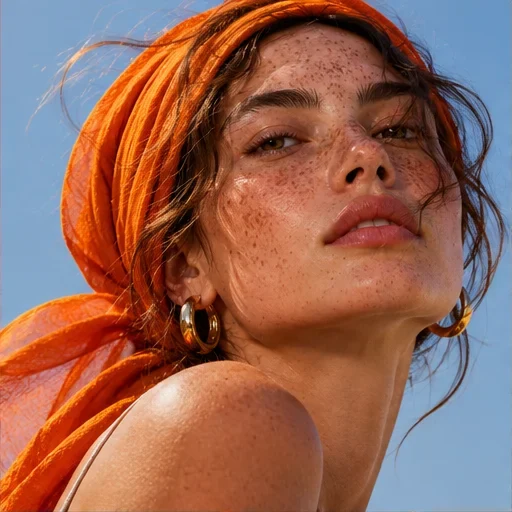
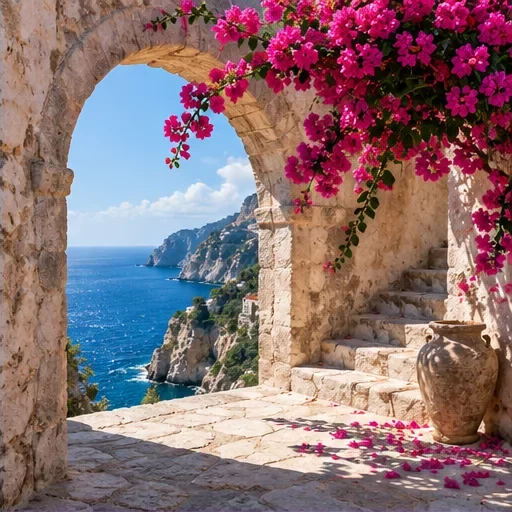
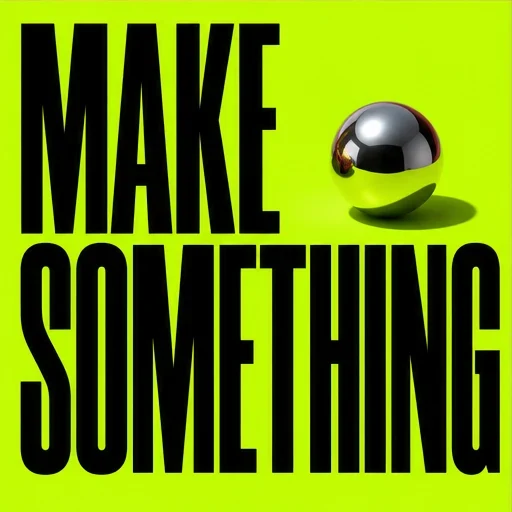
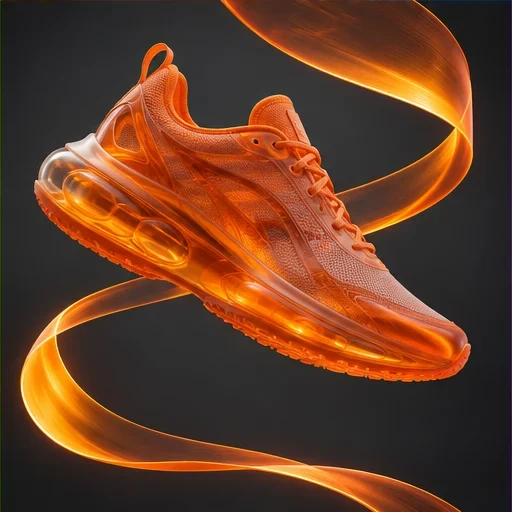
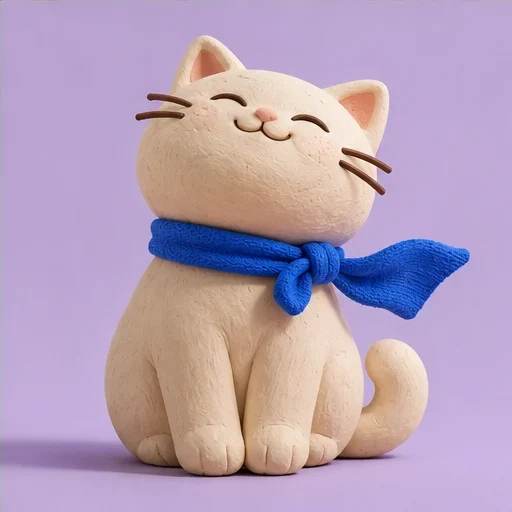
Illustrative creative directions, generated for this site. Your results will vary.
02 / REFERENCE EDIT STUDY
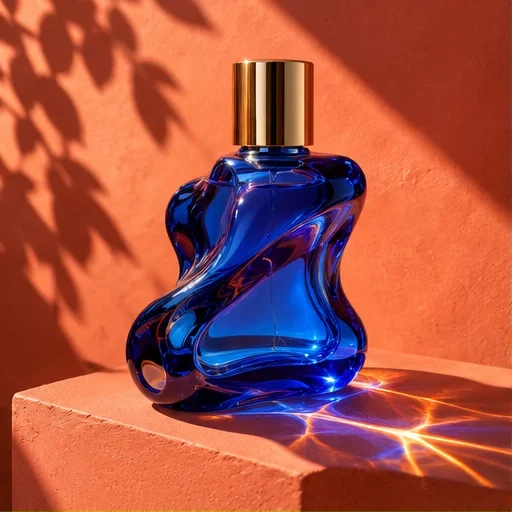
This illustrative edit takes a cobalt-blue glass vase from a gray studio to a sunlit terracotta set. Compare how the light and setting change while the fluted shape stays in place.
Keep the cobalt-blue glass vase, camera angle and crop fixed. Replace the gray studio with a matte terracotta backdrop and surface. Add warm directional sunlight from the upper left and a natural shadow. Preserve the vase’s silhouette, fluting and blue glass.
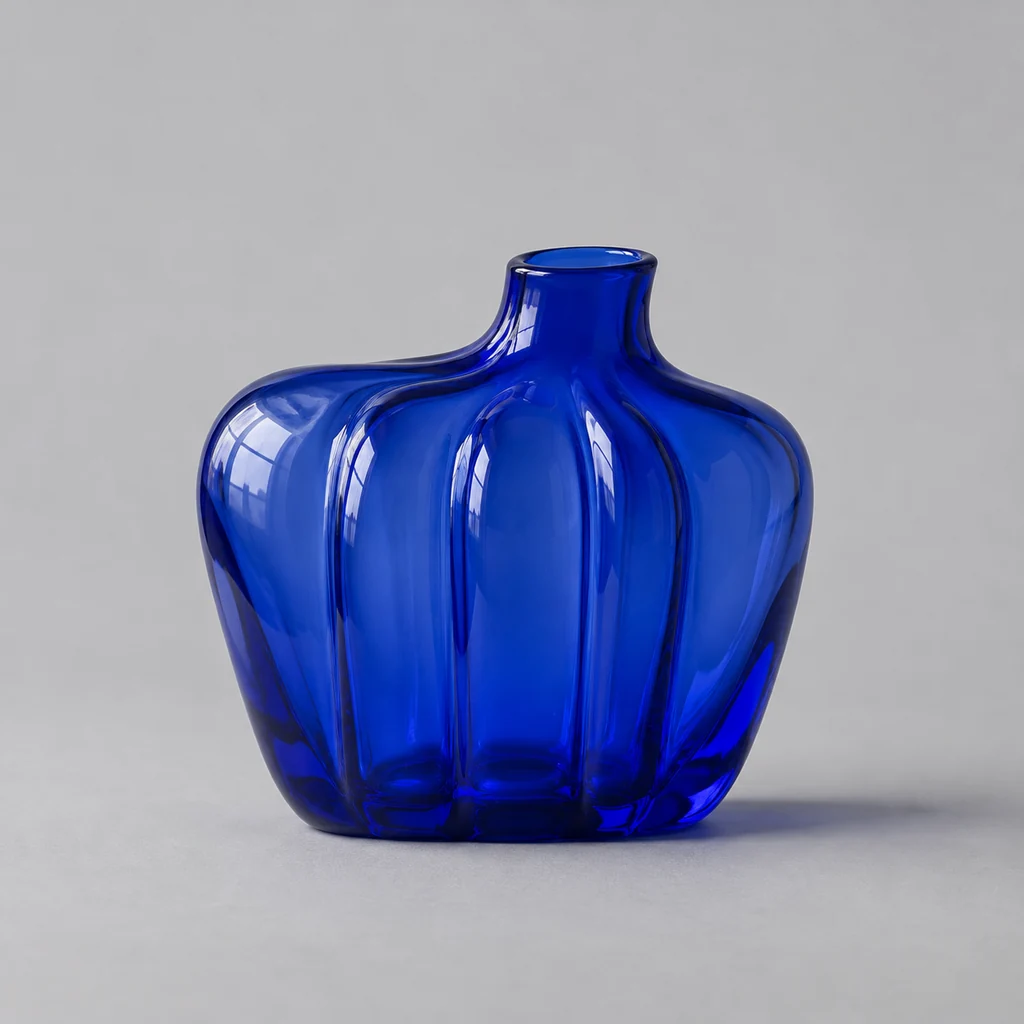
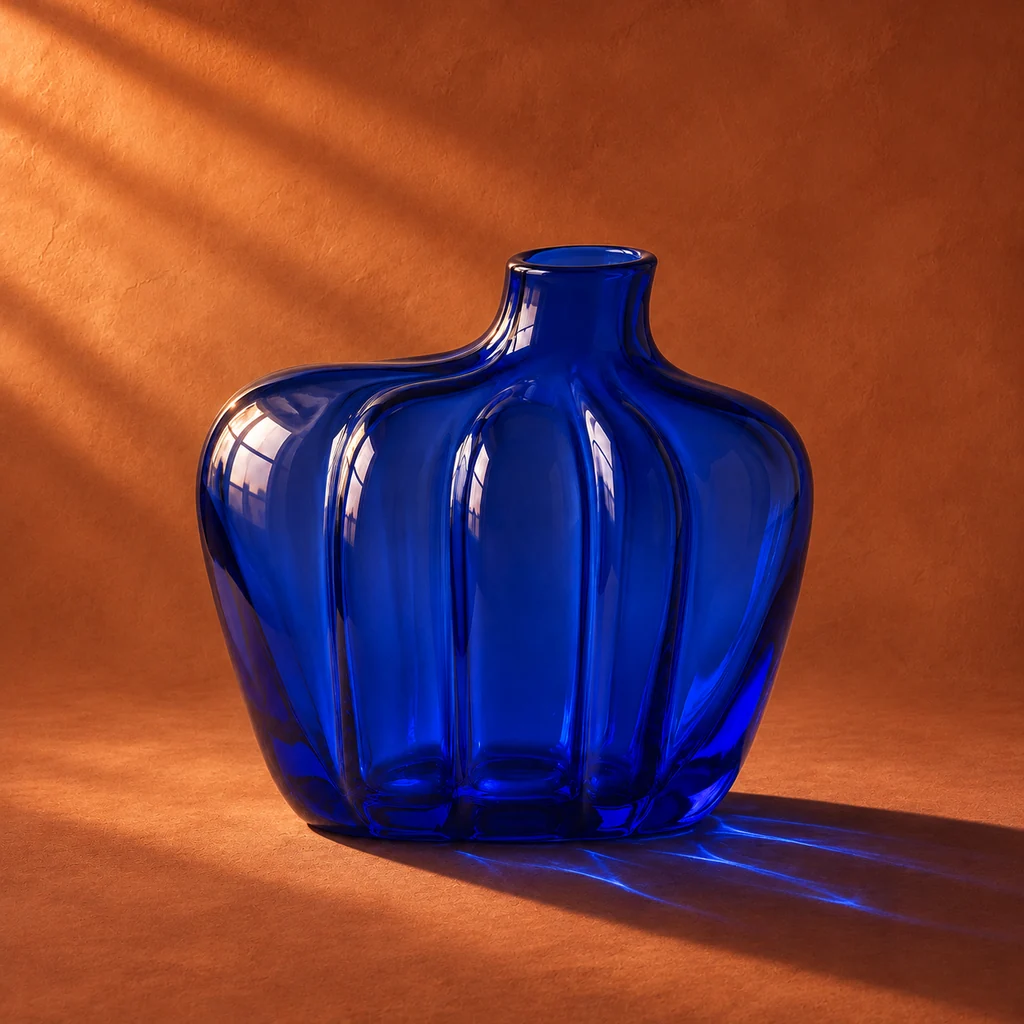
Drag the divider or use the arrow keys.
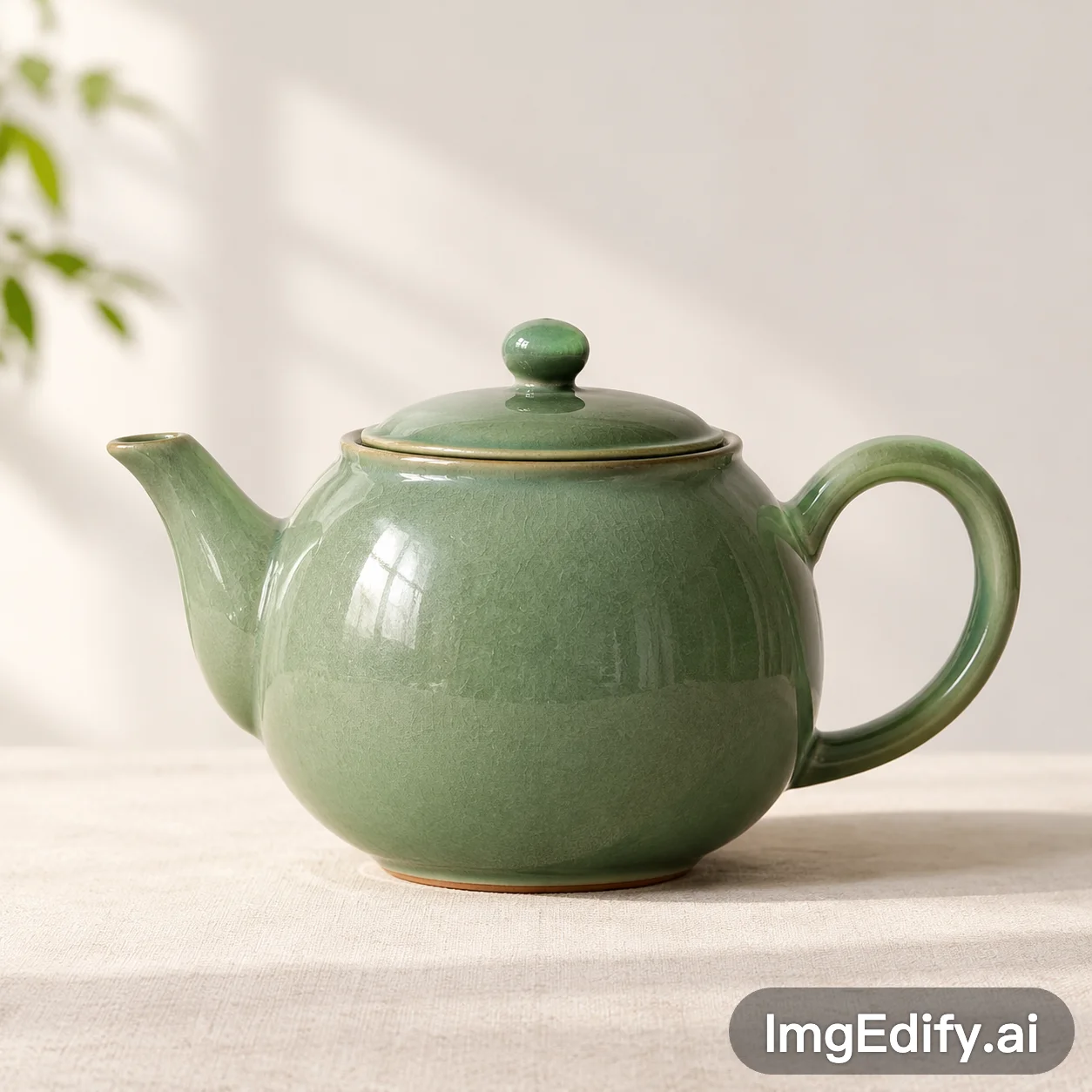
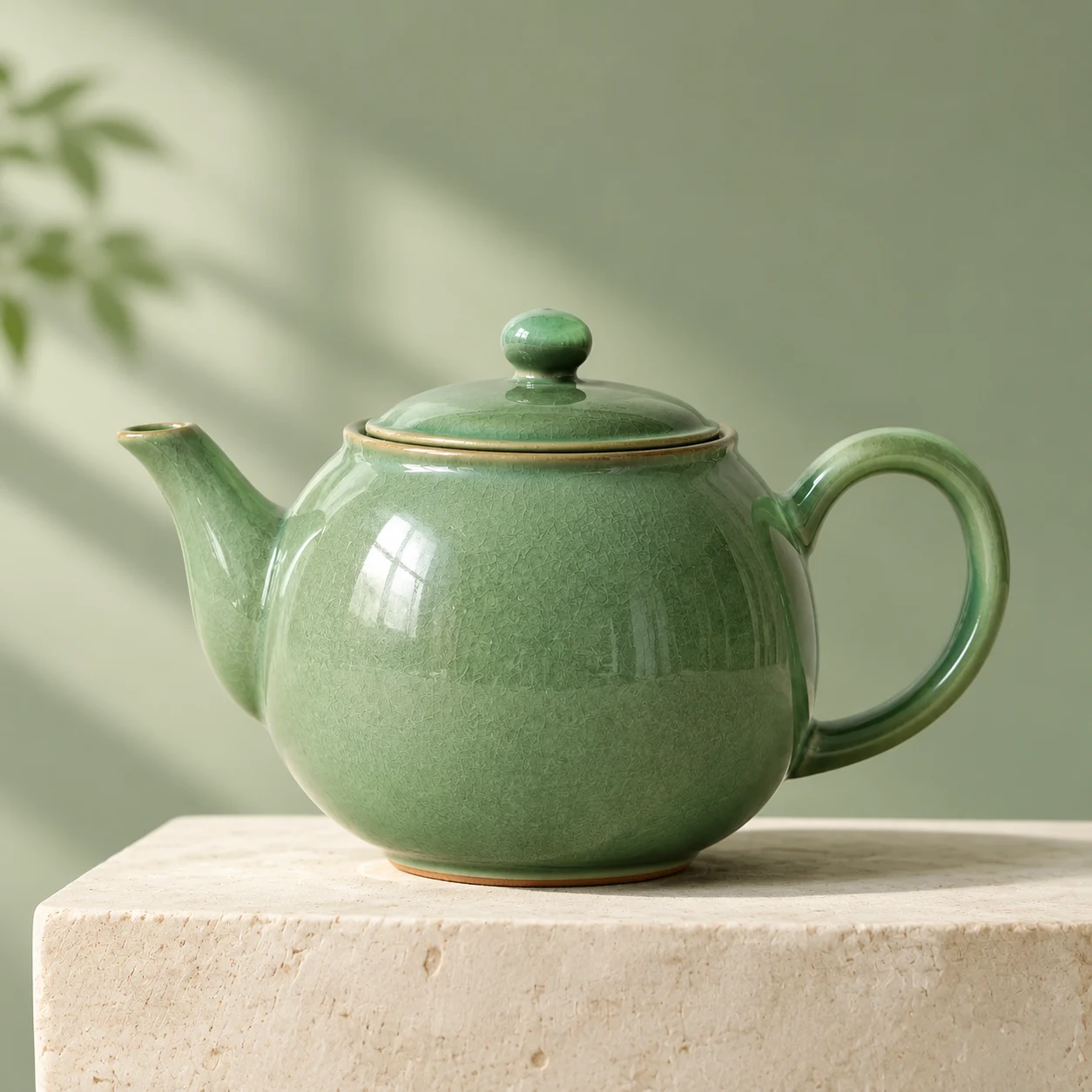
Use the reference green ceramic teapot as the subject. Place it on a cream stone plinth against a muted sage green studio backdrop. Preserve the teapot proportions and glossy green glaze. Square studio product photograph, soft directional daylight, realistic shadows, no text.
Original reference Verified result03 / THE PROCESS
A simple workspace for the whole creative loop.
Write a brief, use a prompt from the library or upload a reference image.
Describe the scene, lighting and details. Choose a frame and check the 10-credit cost.
Check lettering and important details. Download the result or try a focused revision.
04 / FIELD NOTES
A practical prompt structure for subject, composition, lighting and exact text, with examples for product images and posters.
Read the guidePrepare a reference photo, write a focused edit and check the details that matter before downloading.
Read the guidePlan backgrounds, realistic lighting and label checks for product visuals created with GPT Image 2.6.
Read the guide05 / BEFORE YOU CREATE
What changed in GPT Image 2.6 and what you can do in the studio.
Compare GPT Image 2.6 and 2.5GPT Image 2.6 is OpenAI’s model family for generating images from text and editing existing images. OpenAI announced Images 2.6 on November 4, 2026, for ChatGPT, Codex and the API.
OpenAI reports faster generation and better preservation of details across edits. The 2.6 Image API also adds animated GIF and SVG output and a setting for how much planning a request needs. Both versions already offer Flare and Sunburst variants.
Sunburst is the GPT Image 2.6 variant for detailed images and edits. OpenAI’s Image API supports animated GIFs with both Sunburst and the faster Flare variant, and GIF creation is rolling out in ChatGPT. Images26 currently creates still images and does not offer variant selection.
Yes. OpenAI’s Image API offers gpt-image-2.6-sunburst and gpt-image-2.6-flare through its image generation and edit endpoints. Images26 is a browser workspace and does not offer a public developer API.
Images26 is an independent image creation workspace. It connects to the GPT Image 2.6 model through a third-party image service for text-to-image generation and reference image editing. It is not affiliated with OpenAI.
Write a prompt or upload a reference image, choose Auto, Square, Landscape or Portrait, then sign in and review the credit cost. Submit your request, follow its progress and download the result when it is ready.
Yes. Choose Image to image and upload a JPEG, PNG or WebP under 10 MB. Describe what should change and which details should stay. Review the result for unintended changes, especially faces, product labels and text.
New Images26 accounts receive 20 starter credits, enough for two generations at the current cost of 10 credits each. This is a limited trial. Additional credits are not available for purchase until billing is enabled.
The current Images26 integration creates static images with automatic quality and Auto, 1:1, 3:2 or 2:3 framing. Final image dimensions depend on the provider. GIF, SVG, 4K controls and Flare or Sunburst selection are not currently offered here.
A request confirmed as failed returns its reserved credits once. If the provider status is unknown, the request stays pending so that it is not accidentally submitted twice. You can check it again in My creations.
Check the applicable model and provider terms and the rights to any material you upload. You are responsible for reviewing generated work before publication. Images26 does not guarantee exclusivity or third-party rights clearance.
Reference uploads are stored in a private bucket and accessed using temporary signed links for processing. Your generation history is available only to your account. Download finished results promptly because provider links can expire.